# Integration Tests: UI Testing
> For the complete documentation index, see [llms.txt](https://plugins.jetbrains.com/docs/intellij/llms.txt).
> **Tip:**
> This page is part of the [Integration Tests](integration-tests.html) tutorial.
For introduction and setting up dependencies, refer to [Introduction to Integration Tests](integration-tests-intro.html).
## UI Hierarchy
IntelliJ-based IDEs primarily use Swing and AWT for their user interface, while [JCEF](embedded-browser-jcef.html) is used in specific cases like Markdown rendering. These UI frameworks organize elements in a parent-child hierarchy, similar to HTML's DOM structure:
* Top-level containers (IDE frame and dialogs).
* Nested containers.
* Individual components (buttons, text fields, and lists).
Every UI element (except top-level containers) must have a parent container, creating a clear hierarchical structure.
The Driver framework provides a Kotlin DSL that mirrors this hierarchy (see [com.intellij.driver.sdk.ui.components](https://github.com/JetBrains/intellij-community/tree/idea/263.7307.200/platform/remote-driver/test-sdk/src/com/intellij/driver/sdk/ui/components/)).
Here's an example:
```KOTLIN
ideFrame { // 1
invokeAction("SearchEverywhere") // 2
searchEverywherePopup { // 3
actionButtonByXpath(xQuery { byAccessibleName("Preview") }) // 4
.click()
}
}
```
This code demonstrates hierarchical navigation:
1. Find the main IDE window.
2. Trigger the Search Everywhere action.
3. Locate the Search Everywhere popup.
4. Find and click the Preview button within the popup.
`invokeAction()` triggers a registered [action](action-system.html) directly by its action ID, without simulating a click or keyboard shortcut. In the example above, `SearchEverywhere` is the ID under which the Search Everywhere action is registered.
The code could be more concise:
```KOTLIN
ideFrame {
actionButtonByXpath(xQuery { byAccessibleName("Preview") }).click()
}
```
But the shorter code has two significant drawbacks:
* Reduced precision: The code searches for the Preview button throughout the entire IDE frame. It might find unintended matches in the project explorer, tool windows, or other UI elements. This can make tests unreliable and prone to breaking when the UI content changes.
* Decreased readability: While the code is more concise, it doesn't communicate the intended navigation path. The longer version makes it clear exactly where it's expected to find the Preview button, making the code more maintainable and easier to debug.
So, being explicit about the component hierarchy helps create more robust and maintainable UI automation code.
## Searching Components
While the Driver framework provides many pre-built components (like `ideFrame`, `codeEditor`, `button`, `tree`, etc.), sometimes it's required to locate custom elements.
It can be done by pausing the IDE to examine its UI structure:
```KOTLIN
Starter.newContext(...).apply { ... }
.runIdeWithDriver().useDriverAndCloseIde {
Thread.sleep(30.minutes.inWholeMilliseconds) // pause the IDE
}
```
When the test is running, the following line will appear in the logs: `http://localhost:63343/api/remote-driver/`. Opening this URL reveals an HTML representation of the IDE's Swing component tree:
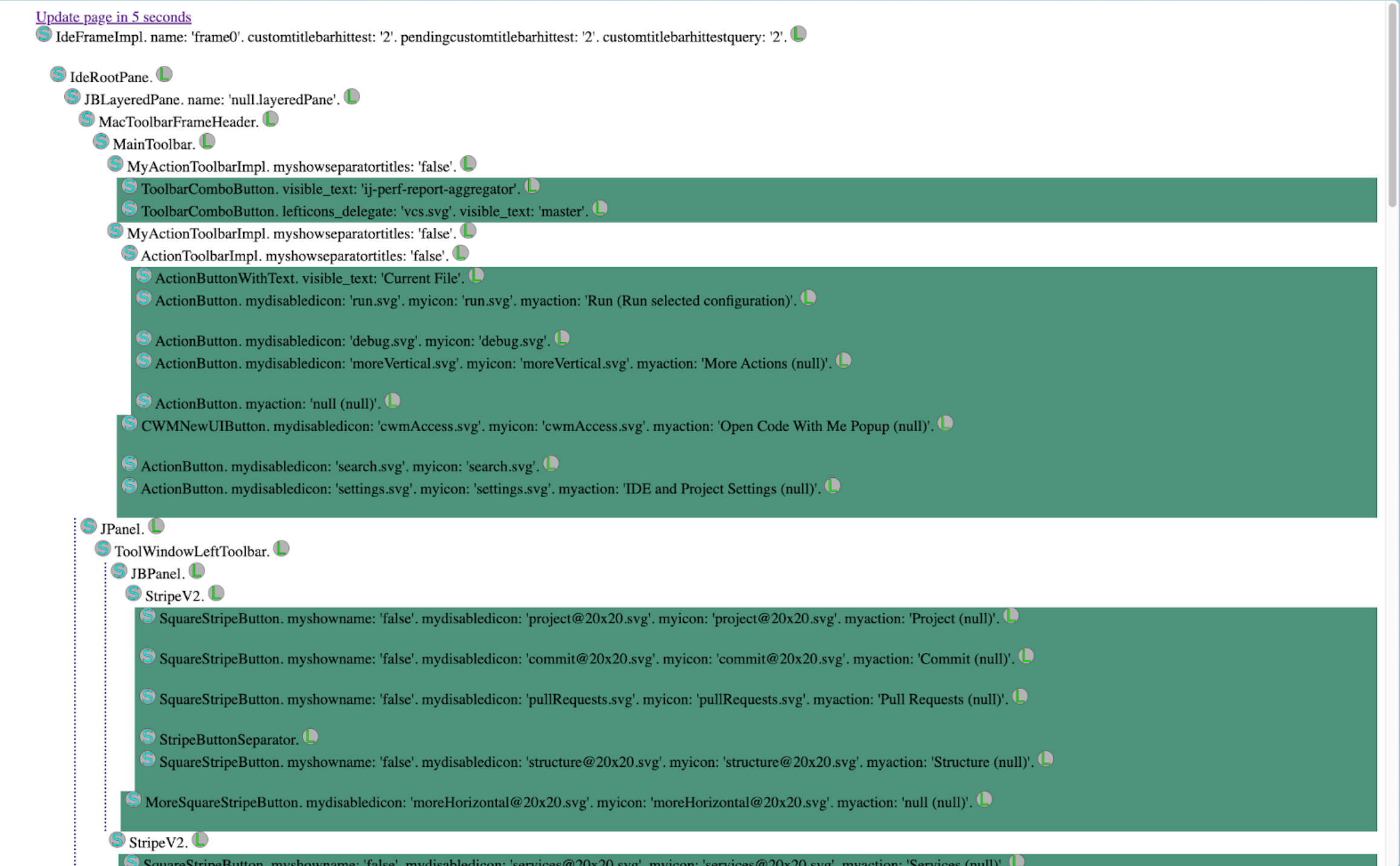
Using Developer Tools in the browser, it's possible to inspect detailed component attributes. Here's an example component:
```HTML
```
There are other attributes, which are omitted for clarity.
The element corresponds to the following button:

Similar to web testing frameworks like Selenium, XPath is used to locate components. The Driver framework provides a simple XPath builder [QueryBuilder](https://github.com/JetBrains/intellij-community/tree/idea/263.7307.200/platform/remote-driver/test-sdk/src/com/intellij/driver/sdk/ui/QueryBuilder.kt).
For reliable component identification, prioritize these attributes, which can be found with predefined methods in `QueryBuilder`:
* `accessiblename`: `xQuery { byAccessibleName() }`
* `visible_text`: `xQuery { byVisibleText() }`
* `javaclass`: `xQuery { byType() }`
* `myicon`: `xQuery { byAttribute("myicon", "") }`
A single component can be found in several ways:
```KOTLIN
xQuery { byAccessibleName("Current File") }
xQuery { byVisibleText("Current File") }
xQuery {
byType("com.intellij.execution.ui.RedesignedRunConfigurationSelector\$createCustomComponent$1")
}
```
Multiple attributes can be combined for a more precise selection, for example:
```KOTLIN
xQuery { and(byAccessibleName("Current File"), byVisibleText("Current File")) }
xQuery {
or(
contains(byAccessibleName("Current")),
byType("com.intellij.execution.ui.RedesignedRunConfigurationSelector\$createCustomComponent$1")
)
}
```
## Interaction with Components
Once a component is located, it's possible to interact with it or verify its properties.
To click the Current File button:
```KOTLIN
x(xQuery { byVisibleText("Current File") }).click()
```
The [x()](https://github.com/JetBrains/intellij-community/tree/idea/263.7307.200/platform/remote-driver/test-sdk/src/com/intellij/driver/sdk/ui/Finder.kt) call creates a lazy reference to the component. It means that the XPath query isn't executed immediately and component lookup happens only when an action (like `click()`) is invoked.
Here's a part of a test that incorporates UI interaction:
```KOTLIN
runIdeWithDriver().useDriverAndCloseIde {
waitForIndicators(1.minutes)
ideFrame {
x(xQuery { byVisibleText("Current File") }).click()
}
}
```
Beyond mouse clicks, keyboard input and shortcuts can be simulated:
```KOTLIN
keyboard {
typeText("Sample text")
enter()
hotKey(if (SystemInfo.isMac) KeyEvent.VK_META else KeyEvent.VK_CONTROL, KeyEvent.VK_A)
backspace()
}
```
Keyboard methods perform presses using `java.awt.Robot`, so to type into a particular component or invoke a shortcut in the appropriate place, the component must first be focused. The most reliable way to do this is to perform `click` on the component first.
> **Note:**
> On macOS, the interaction via `java.awt.Robot` requires special permissions. IntelliJ IDEA should be granted the necessary permissions via the Accessibility page, which can be found under `System Settings | Privacy & Security`.
## Asserting Properties
The complete UI test:
```KOTLIN
@Test
fun simpleTestForCustomUIElement() {
Starter.newContext(
"testExample",
TestCase(
IdeInfo.IdeaUltimate,
GitHubProject.fromGithub(
branchName = "master",
repoRelativeUrl = "JetBrains/ij-perf-report-aggregator"
)
)
)
.runIdeWithDriver().useDriverAndCloseIde {
waitForIndicators(1.minutes)
ideFrame {
x(xQuery { byVisibleText("Current File") }).click() //1
val configurations = popup().jBlist( //2
xQuery { contains(byVisibleText("Edit Configurations")) } //3
)
configurations.shouldBe("Configuration list is not present", present) //4
Assertions.assertTrue(
configurations.rawItems.contains("backup-data"), //5
"Configurations list doesn't contain 'backup-data' item: ${configurations.rawItems}"
) //6
}
}
}
```
The test does the following:
1. Opening the popup by clicking the Current File button.
2. Finding the list by using `popup()` to locate the popup with a configuration list. This works without any XPath because at the moment of the call, there are no other popups shown on the UI.
3. Finding the list containing the text `Edit Configurations`. XQuery searches for the list component that contains the visible text `Edit Configurations` and verifies the list presence.
4. Using `shouldBe(, present)` to ensure the list exists. This is important because `popup().jBlist` creates a lazy reference without actually checking the results. The actual check happens when `shouldBe` calls the `present` method. See [should() Methods](#should-methods) for details on how `shouldBe()` waits for and asserts conditions.
5. Checking list contents by accessing the `rawItems` property to get all list items and asserting `backup-data` exists in the list.
6. Including the full list content in the error message for debugging.
## Waiting
Integration tests often need to wait until the IDE reaches a certain state. The Test SDK provides its own waiting API with two families of methods:
* `should()` methods on UI components, for asserting and waiting on a component state.
* `waitFor()` methods, for waiting on arbitrary conditions and common IDE states.
### `should()` Methods
The Test SDK adds extension methods on UI components that poll a condition until it holds or the timeout elapses (15 seconds by default). Each method returns the same component, so calls can be chained, and a [WaitForException](https://github.com/JetBrains/intellij-community/tree/idea/263.7307.200/platform/remote-driver/test-sdk/src/com/intellij/driver/sdk/waits.kt) is thrown when the condition is not met in time.
```KOTLIN
// waits until the condition returns true
component.should { isEnabled() }
// same as should(); reads as a state assertion, often with a predefined condition
component.shouldBe(enabled)
// waits until the condition returns false
component.shouldNot(present)
// waits until the block runs without throwing; rethrows the last error on timeout
component.shouldBeNoExceptions { /* assertions */ }
```
The condition can use one of the predefined checks: `enabled`, `notEnabled`, `present`, `notPresent`, or `focusOwner`.
Specific component types add their own assertions, for example `JListUiComponent.shouldBeEqualTo()`, `JEditorUiComponent.shouldContainText()`, or `UiComponent.shouldHaveFocus()`. The full set of conditions and assertions is available in [conditions.kt](https://github.com/JetBrains/intellij-community/tree/idea/263.7307.200/platform/remote-driver/test-sdk/src/com/intellij/driver/sdk/ui/conditions.kt).
### `waitFor()` Methods
The general-purpose `waitFor()` polls an arbitrary condition until it returns `true` or the timeout elapses (5 seconds by default, checked once per second), throwing `WaitForException` on timeout:
```KOTLIN
waitFor("the expected state description", timeout = 30.seconds) {
// return true once the expected state is reached
}
```
For common IDE and UI states, the Test SDK provides ready-made helpers built on top of `waitFor()`:
```KOTLIN
// waits only until the Project reference becomes available (see the note below)
waitForProjectOpen(timeout)
// waits until the project is opened and no progress indicators remain for 10 seconds
waitForIndicators(project, timeout)
// waits until the code analysis daemon has finished analyzing the file
waitForCodeAnalysis(file = file)
// waits until no dialogs are open
waitForNoOpenedDialogs()
```
`waitForCodeAnalysis()` requires the `file` argument to be named, because the first parameter is an optional `Project`.
> **Warning:**
> `waitForProjectOpen()` only guarantees that the `Project` reference is not `null`. The UI, Project View, and services may still be uninitialized, which can lead to flaky tests. To wait until the IDE is fully ready, prefer `waitForIndicators()`, which also waits for the project to open.
The generic `waitFor()` and the IDE-state helpers are defined in the [com.intellij.driver.sdk](https://github.com/JetBrains/intellij-community/tree/idea/263.7307.200/platform/remote-driver/test-sdk/src/com/intellij/driver/sdk) package and its subpackages.